Documentation
One page controls how every signature looks. Everything previews live, nothing is saved until you say so, and every control produces HTML that survives real mail clients.
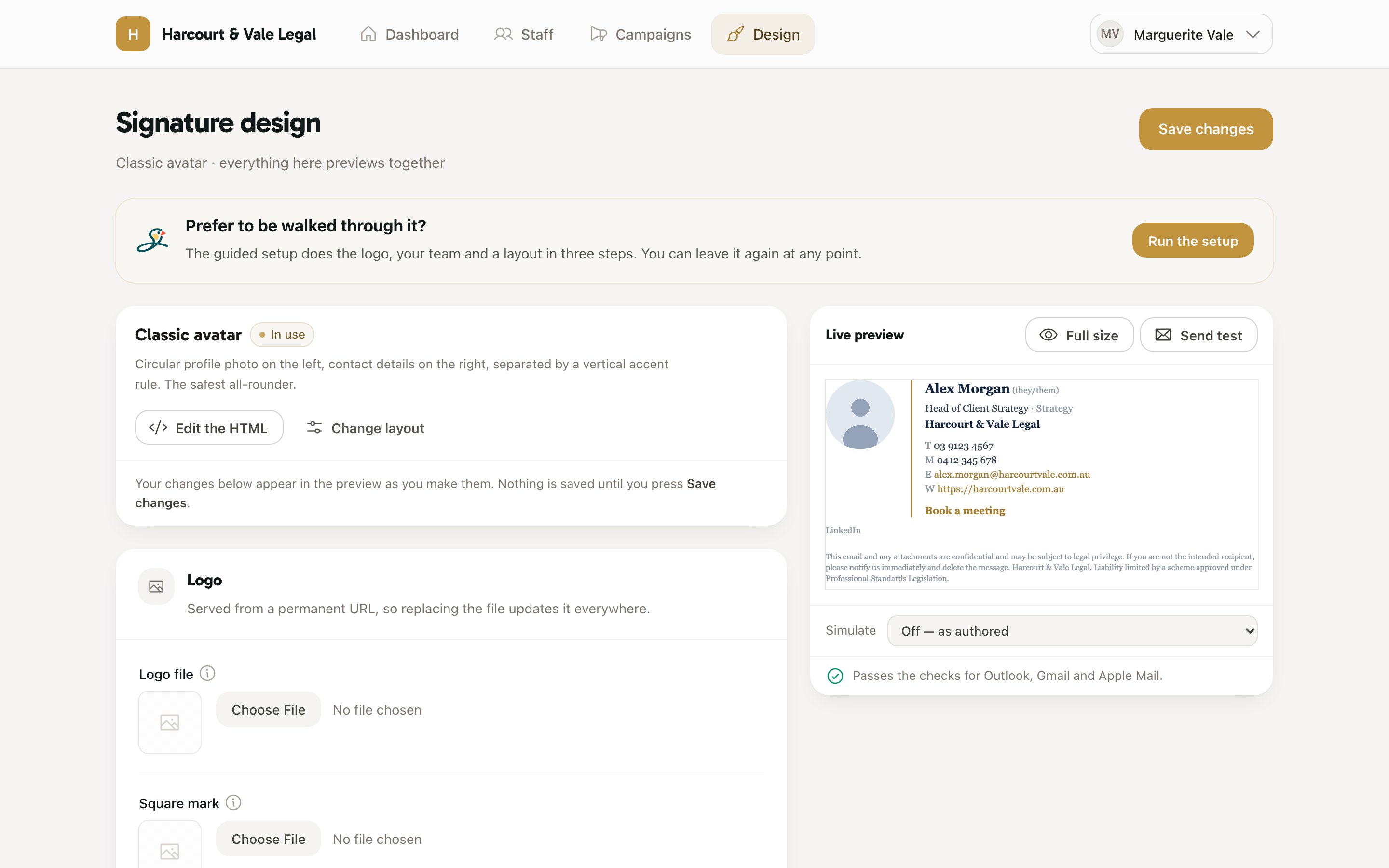
Logo, square mark, colours and typography live at the top because they're what most people come to change. The logo is served from a permanent URL, so replacing the file updates every installed signature without anyone re-pasting.
Change layout opens the gallery. Every layout is email-safe by construction — tables, inline styles, images with baked-in crops — because Outlook on Windows renders with Word and drops border-radius, margins and web fonts. If you want full control, Edit the HTML opens the template itself; see building a template for the tokens and conditionals.
The right rail shows the signature with sample details and your brand, re-rendered as you type. Full size opens it at real scale; Send test emails what you're looking at — saved or not — to any address, so you can check it in a real mail app before rolling anything out.
The Simulate picker redraws the preview the way a particular mail client would — every CSS property that client is recorded as not supporting is stripped before drawing. Below it, the deliverability checks read the rendered HTML the same way our linter does and flag anything that would break: a web font, a layout past Gmail's size limit, a relative image URL. Quiet when everything passes.
Fine-tuning includes which personal fields staff can change on their own page. Everything else — colours, layout, company details — is yours alone, which is what keeps a hundred signatures identical six months in.