Documentation
Everyone who holds a signature lives on the Staff page. Each person gets a personal link they use to set their signature up themselves — no accounts, no passwords, no IT ticket.
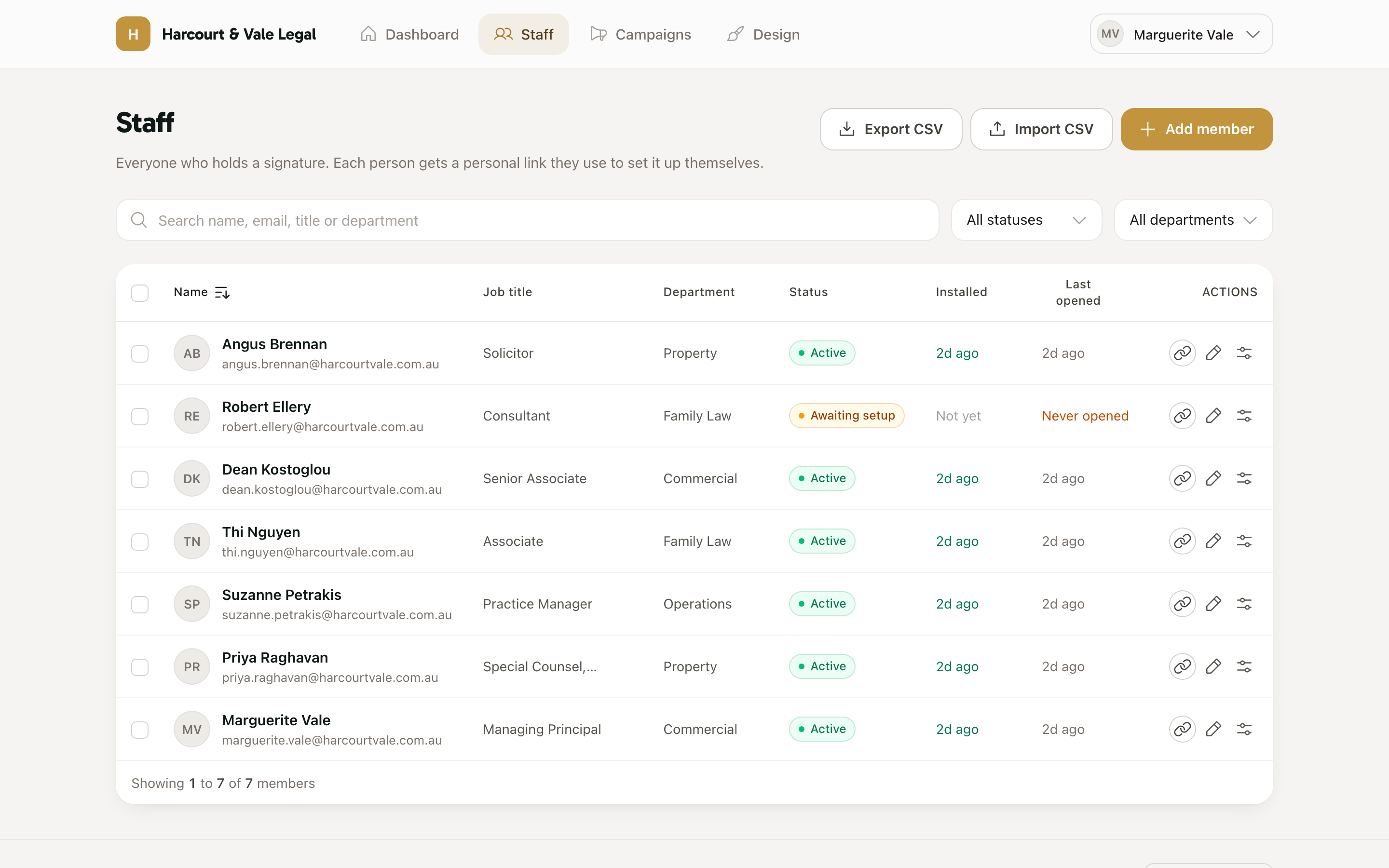
Add member takes the details your layout shows — only the first name is required. Adding someone generates their signature and mints their personal link in the same moment, so there is never a person without a signature waiting on a second step.
Import CSV takes a spreadsheet export from anywhere — you map your columns onto our fields on the way in, so the headings don't have to match. Export CSV gives the whole roster back, personal links included, which is handy for an internal wiki or onboarding pack.
Every person gets a durable link to their own signature page. On it they can fix their details, upload a photo if the layout uses one, copy the signature, and follow install steps for their mail client. The link never expires, so "my phone number changed" is self-service forever — and because staff can only edit their own personal fields, the brand never drifts.
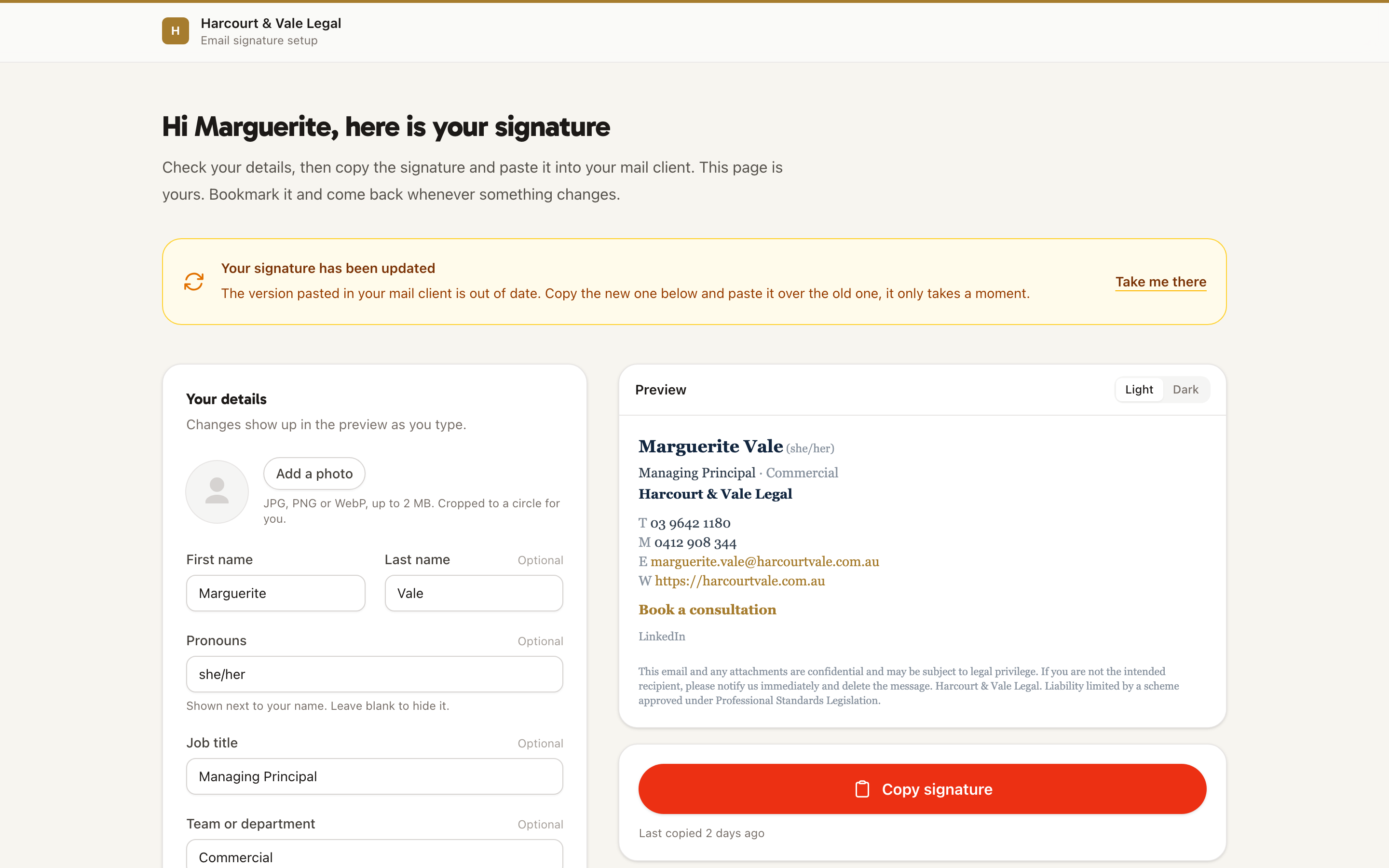
The Installed and Last opened columns — and the dashboard's install progress — show exactly who has pasted their signature and who has never opened their link. When the design changes later, the same columns track who has re-pasted the new version.
Archive someone and they stop counting toward your bill from that moment. Their personal link stops working; nothing else about your workspace changes.